Zoho Books E-Invoicing in the UAE: Setup Guide, Peppol ID and Pricing
How to set up Zoho Books e-invoicing in the UAE: link Zoho as your ASP in EmaraTax, get your Peppol ID and TIN from your TRN, fix failed invoices and check pricing.
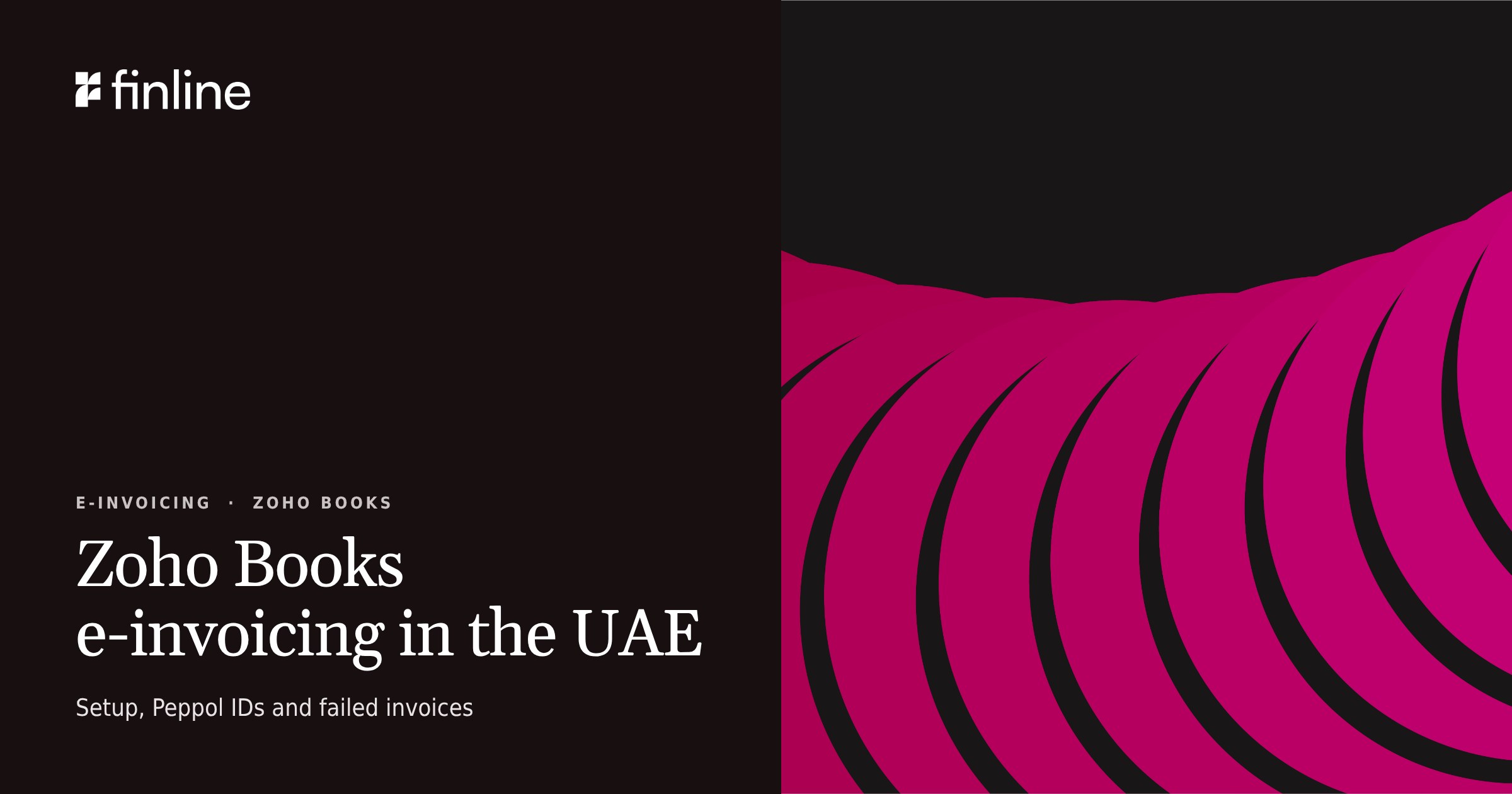
In short. To set up Zoho Books e-invoicing in the UAE, enable taxes and enter your TRN, then go to Settings > E-Invoicing > Set Up Now. Verify your details, sign in to EmaraTax and select Zoho Software Trading LLC as your Accredited Service Provider (ASP), then return to Zoho Books and click Verify & Complete Setup [1]. Your Peppol ID is 0235 followed by your 10-digit TIN, which is the first 10 digits of your TRN [2]. If your annual revenue is AED 50 million or more, the ASP has to be appointed by 30 October 2026 and e-invoicing has to be live by 1 January 2027 [4].
The setup in Zoho Books is three screens. Whether the first invoice after go-live is accepted depends on the customer and item data behind it, so the data checks come before the clicks below. Each step uses Zoho's own screens. Setup is one part of e-invoicing readiness, alongside data, ERP integration, testing and go-live.
UAE e-invoicing timeline: which deadline applies to you
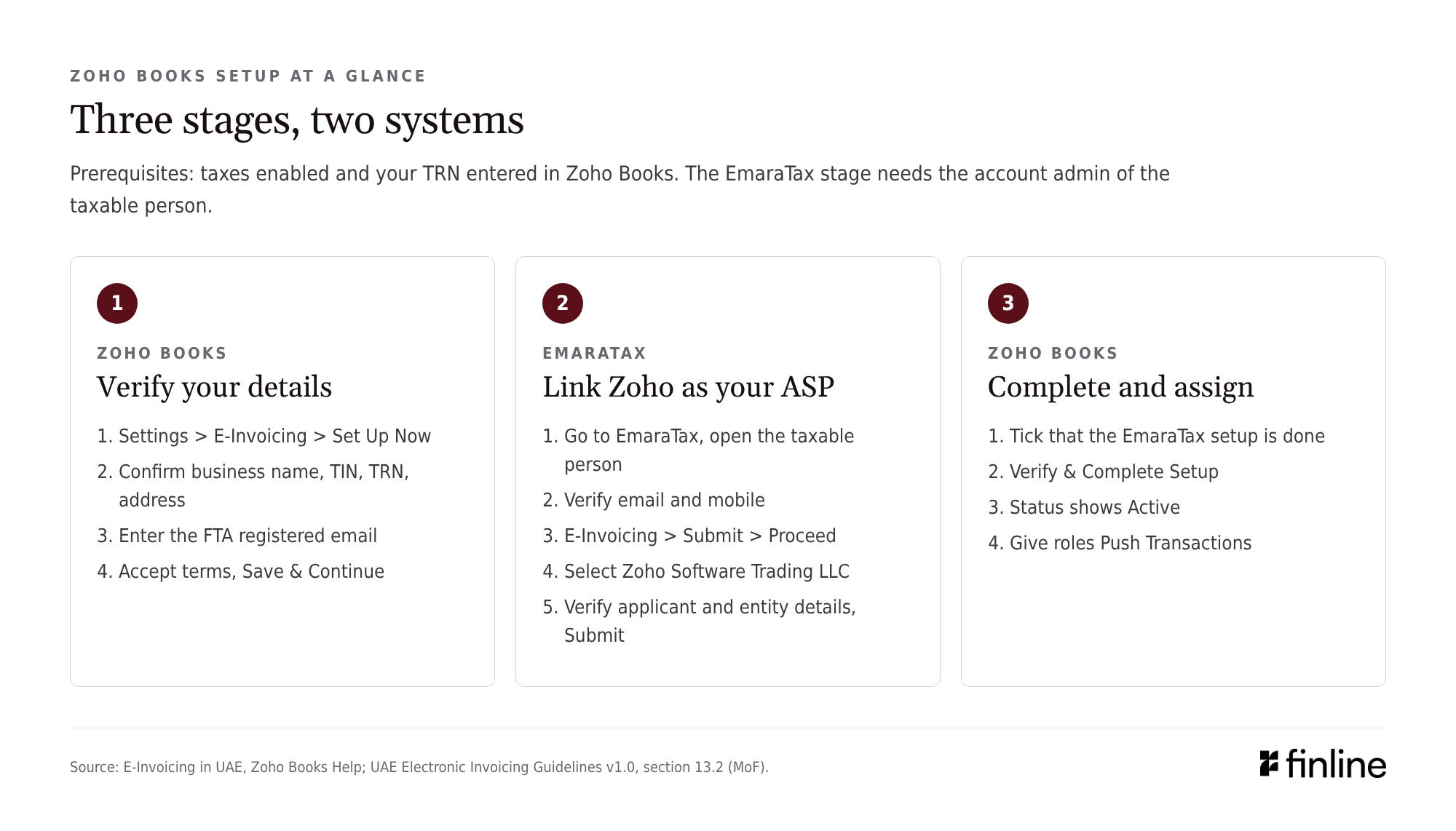
The Ministry of Finance phases the mandate by annual revenue. The first deadline was originally 31 July 2026; in June the Ministry moved it to 30 October 2026, kept the 1 January 2027 go-live and said it would grant no further extensions [2][4].
- Annual revenue of AED 50 million or more: appoint an ASP by 30 October 2026; e-invoicing is mandatory from 1 January 2027.
- Annual revenue below AED 50 million: appoint an ASP by 31 March 2027; mandatory from 1 July 2027.
- Government entities (B2G): appoint an ASP by 31 March 2027; mandatory from 1 October 2027.
Businesses have been able to issue e-invoices voluntarily since the pilot opened on 1 July 2026, and e-invoicing penalties don't apply to voluntary invoices [2]. VAT group members have their own timing, covered in our note on what Ministerial Decision 197 of 2026 changes.
Linking Zoho Books to its ASP is how you appoint one. The guidelines require a single ASP for both sending and receiving, so finishing this setup also settles your ASP [2]. If you are still comparing providers, read how to choose an e-invoicing ASP or the full MoF accredited list first.
Your Peppol ID and TIN number both come from your TRN
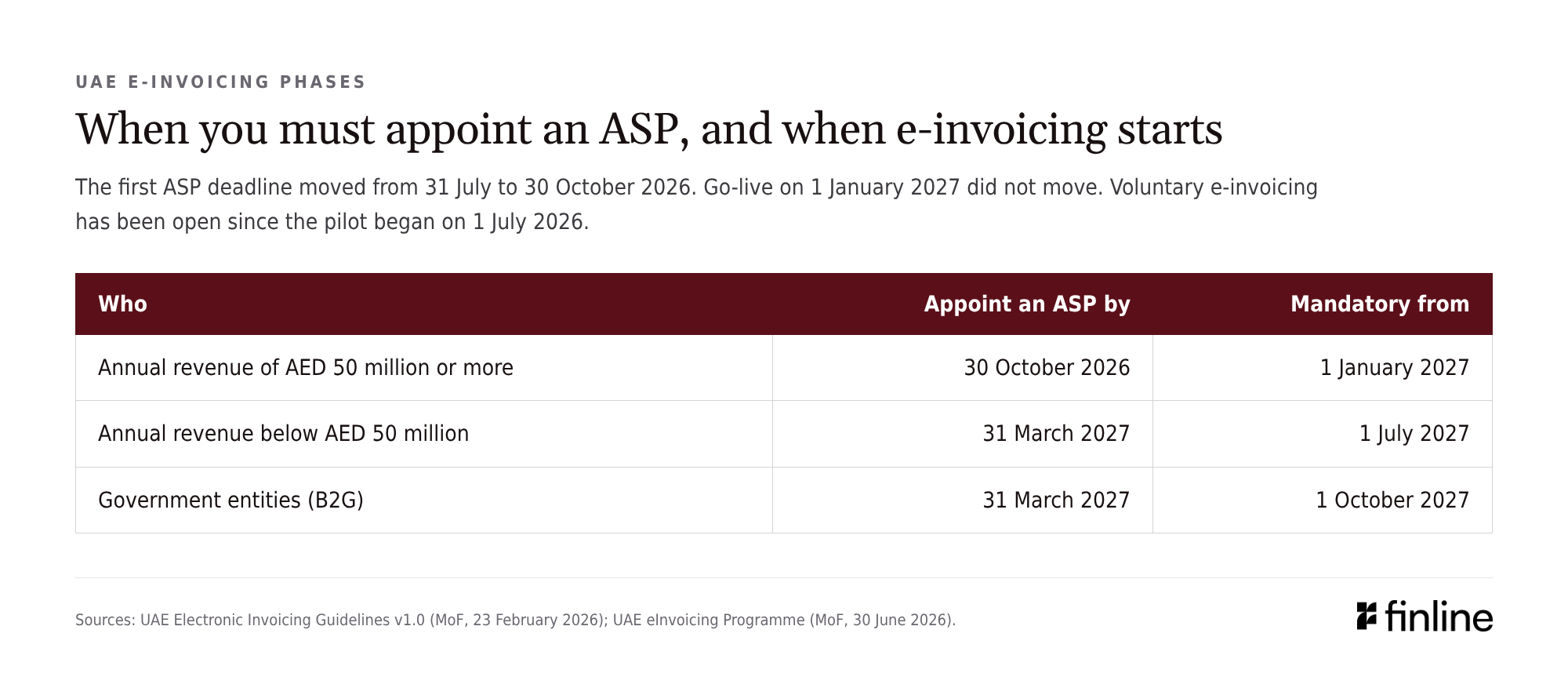
Every business on the UAE network has a Peppol ID, formally the Peppol participant identifier and also called the endpoint ID. The guidelines define it as 0235 followed by the 10-digit TIN, and the TIN as the first 10 digits of the 15-digit TRN the FTA issued you. The guidelines describe it as issued by the FTA during onboarding, and your ASP shares it with you once onboarding is complete, so there is nothing separate to apply for [2].
For example, a business with the TRN 100123456700003 has the TIN number 1001234567 and the Peppol ID 0235:1001234567. These numbers are illustrative.
This has three effects on setup. Your customers are addressed the same way, from their TRNs, so a wrong or missing customer TRN in Zoho Books leaves the invoice with nowhere to go; Zoho Books checks the customer's TRN before it submits. In a tax group, each member uses the first 10 digits of its own TRN rather than the representative member's, and each member is onboarded separately in EmaraTax. And a business in scope that isn't registered for any tax still has to register with the FTA to get a TIN [1][2].
Before you set up e-invoicing in Zoho Books: clean the data
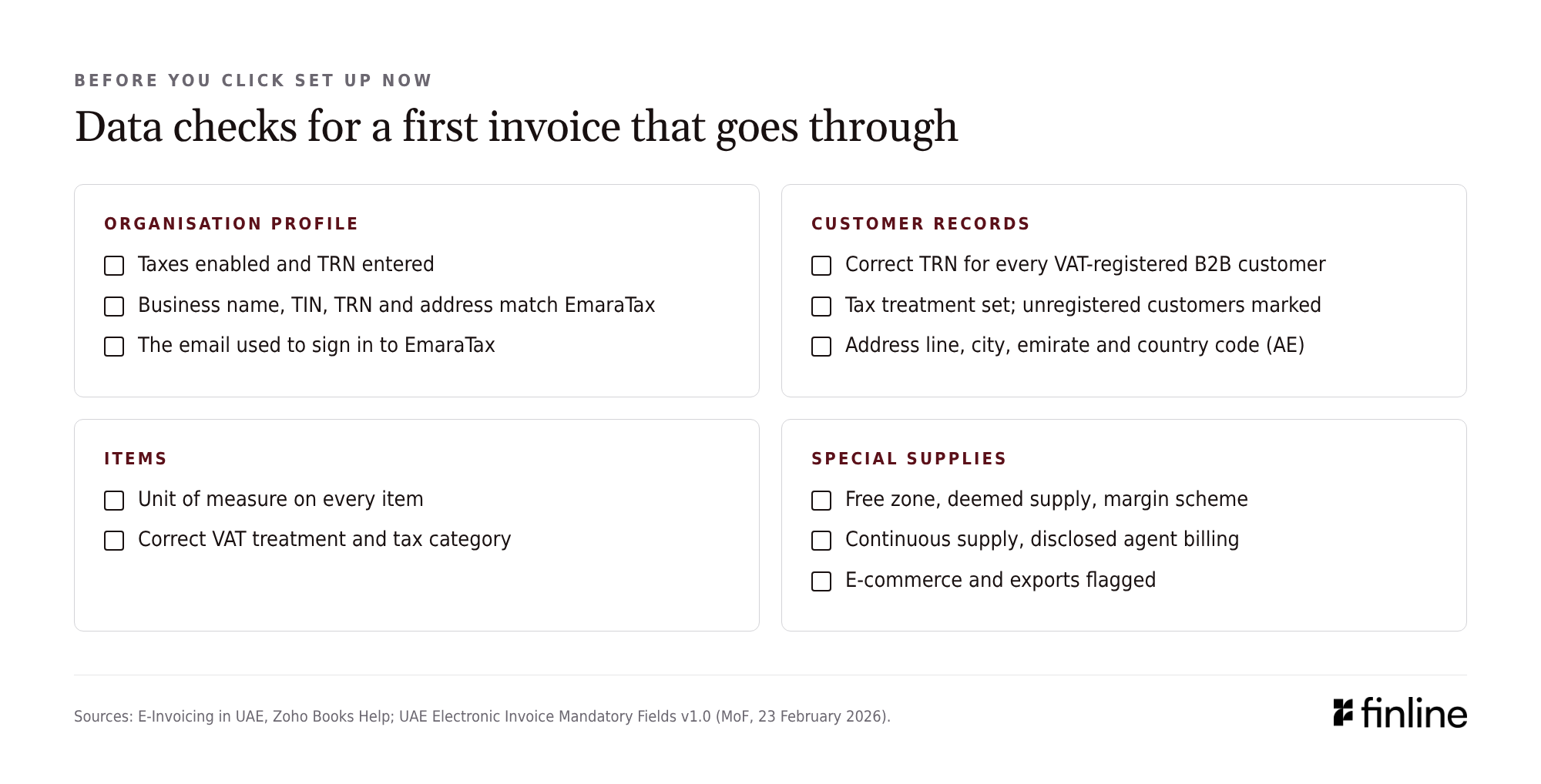
Zoho Books won't start setup until taxes are enabled and your TRN is entered [1]. The checks below decide whether invoice one goes through.
Start with the organisation profile. The registered business name, TIN, TRN and address should match EmaraTax exactly, and you need the email you use to sign in to EmaraTax. The first setup screen writes back to your organisation profile, so a mismatch carries into every invoice [1].
Then the customer records. Every B2B customer you invoice needs a correct TRN, the right tax treatment and a full address with city, emirate and country code (AE for the UAE). Address line, city, country subdivision and country code are mandatory for both seller and buyer on an electronic tax invoice. Mark customers who aren't registered for VAT as unregistered, so their invoices don't carry a TRN that doesn't exist [3].
Items need a unit of measure and the right VAT treatment. Unit of measure code and tax category code are both mandatory fields [3].
Finally, special supplies. The invoice carries a flag for free zone supplies, deemed supplies, the margin scheme, continuous supplies, disclosed agent billing, e-commerce and exports. If you make any of these, settle how Zoho Books will identify them before go-live [3].
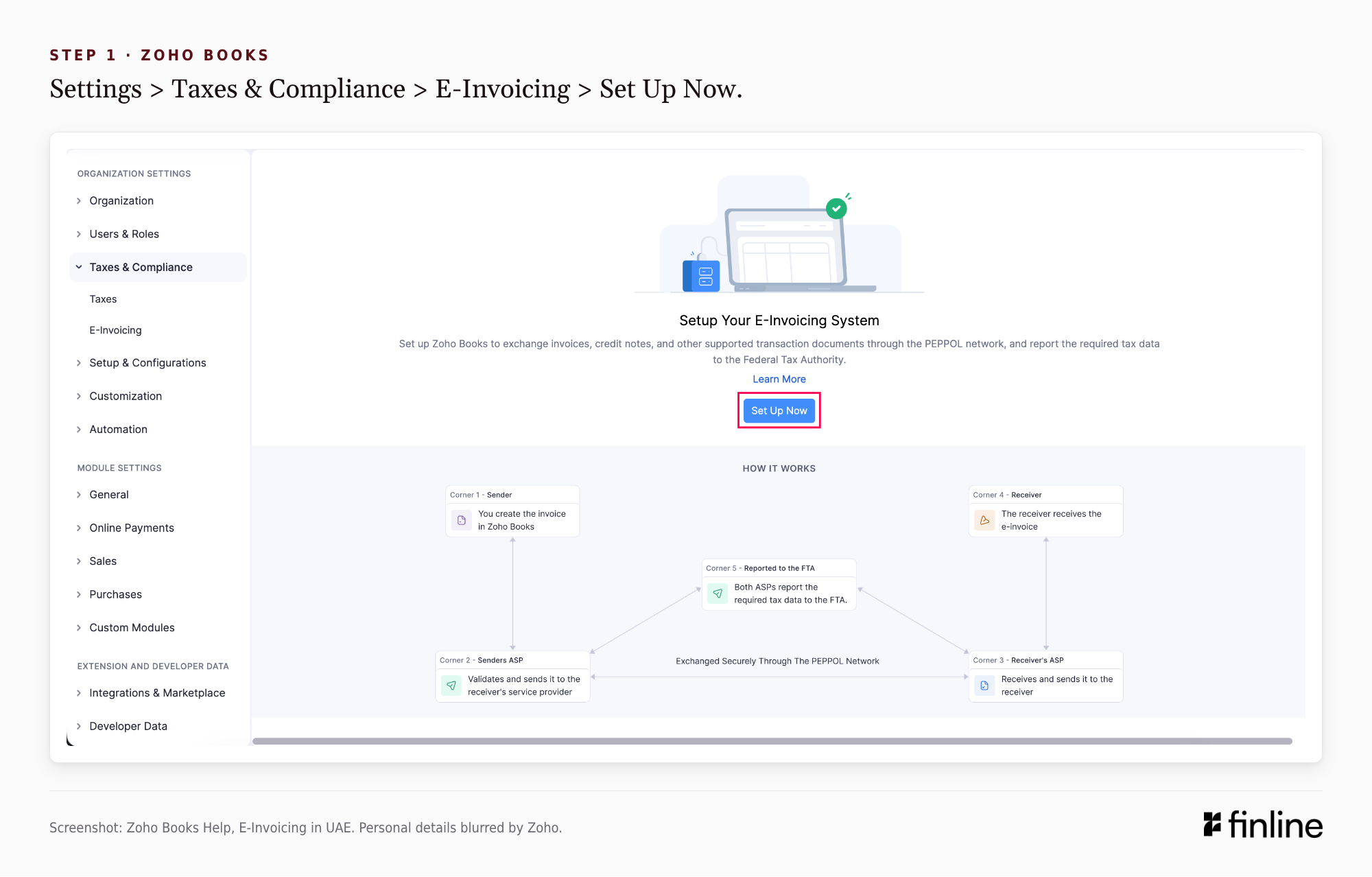
Step 1: verify your details in Zoho Books
Go to Settings (top right) > E-Invoicing under Taxes & Compliance > Set Up Now. Confirm the Registered Business Name, TIN, TRN, Organisation Address and FTA Registered Email ID. The email must be the one you use to sign in to EmaraTax. Accept the terms and click Save & Continue [1].
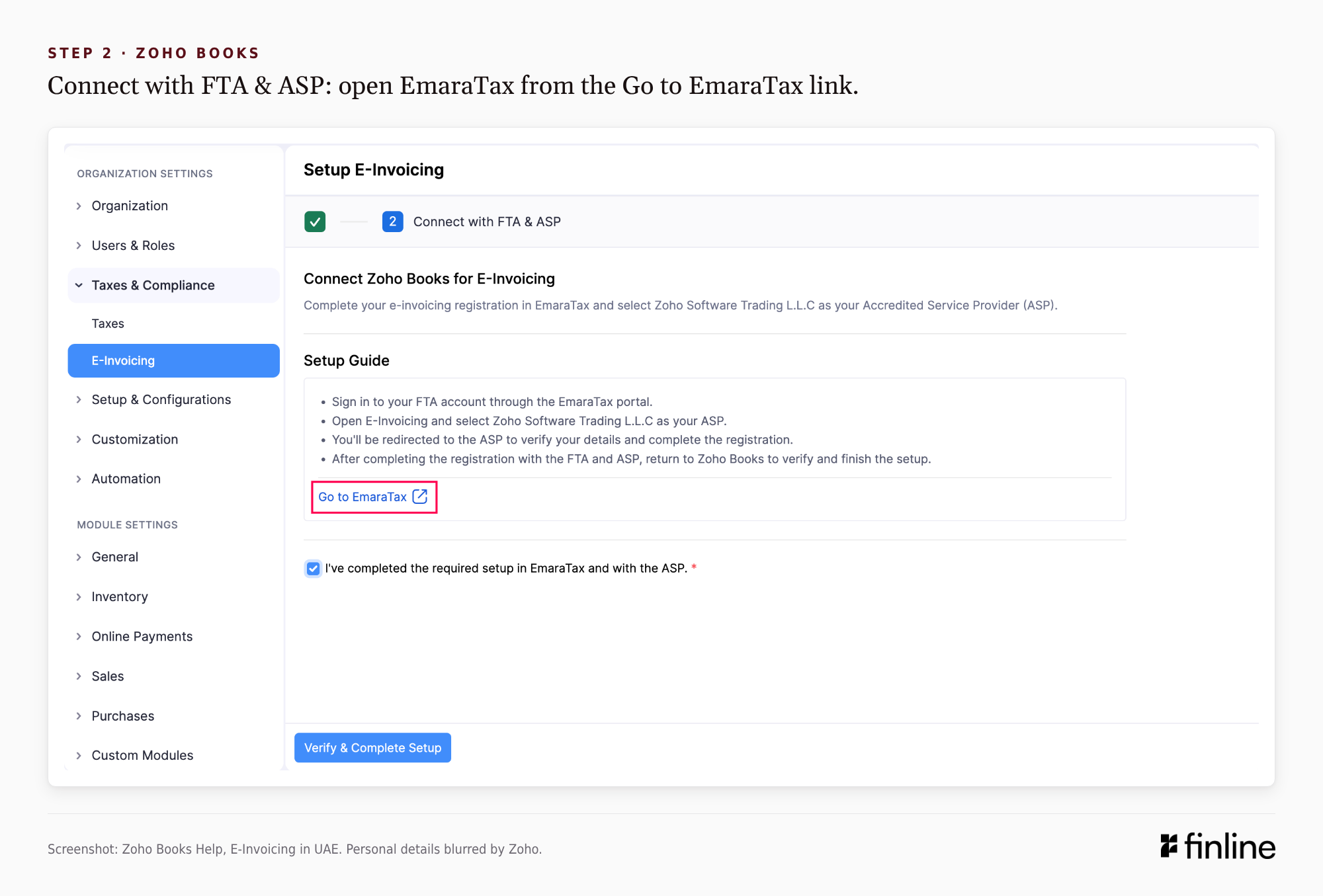
Step 2: select Zoho as your ASP in EmaraTax
You start onboarding, not the ASP, and in EmaraTax it has to be the account admin of the taxable person. Make sure that person is available before you begin [2].
- Under Connect with FTA & ASP, click Go to EmaraTax to open the FTA portal.
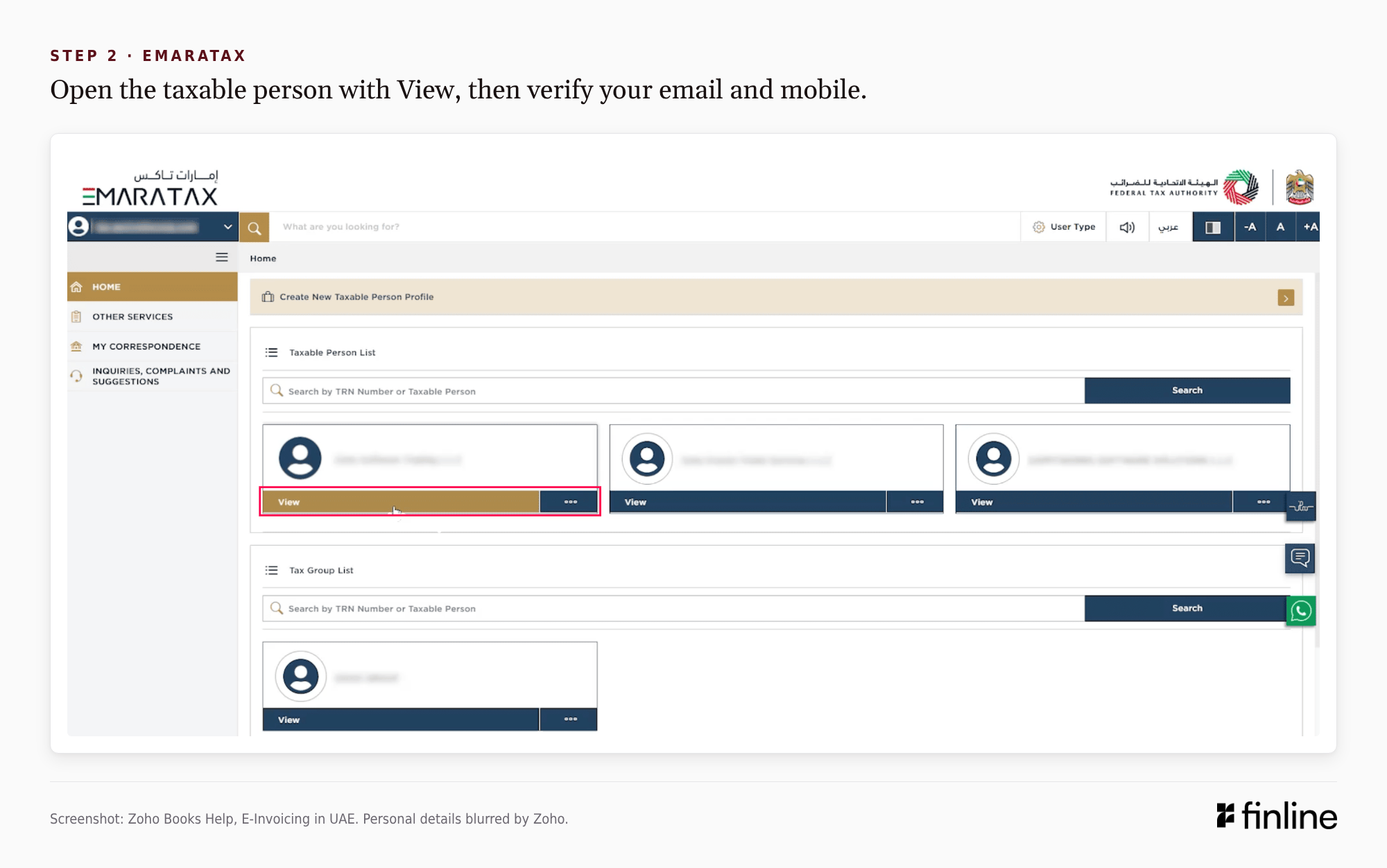
- Sign in, hover over the taxable person and click View. Verify your email and mobile number in the pop-up and click Proceed.
- Click E-Invoicing in the left sidebar, confirm the instructions, then click Submit and Proceed.
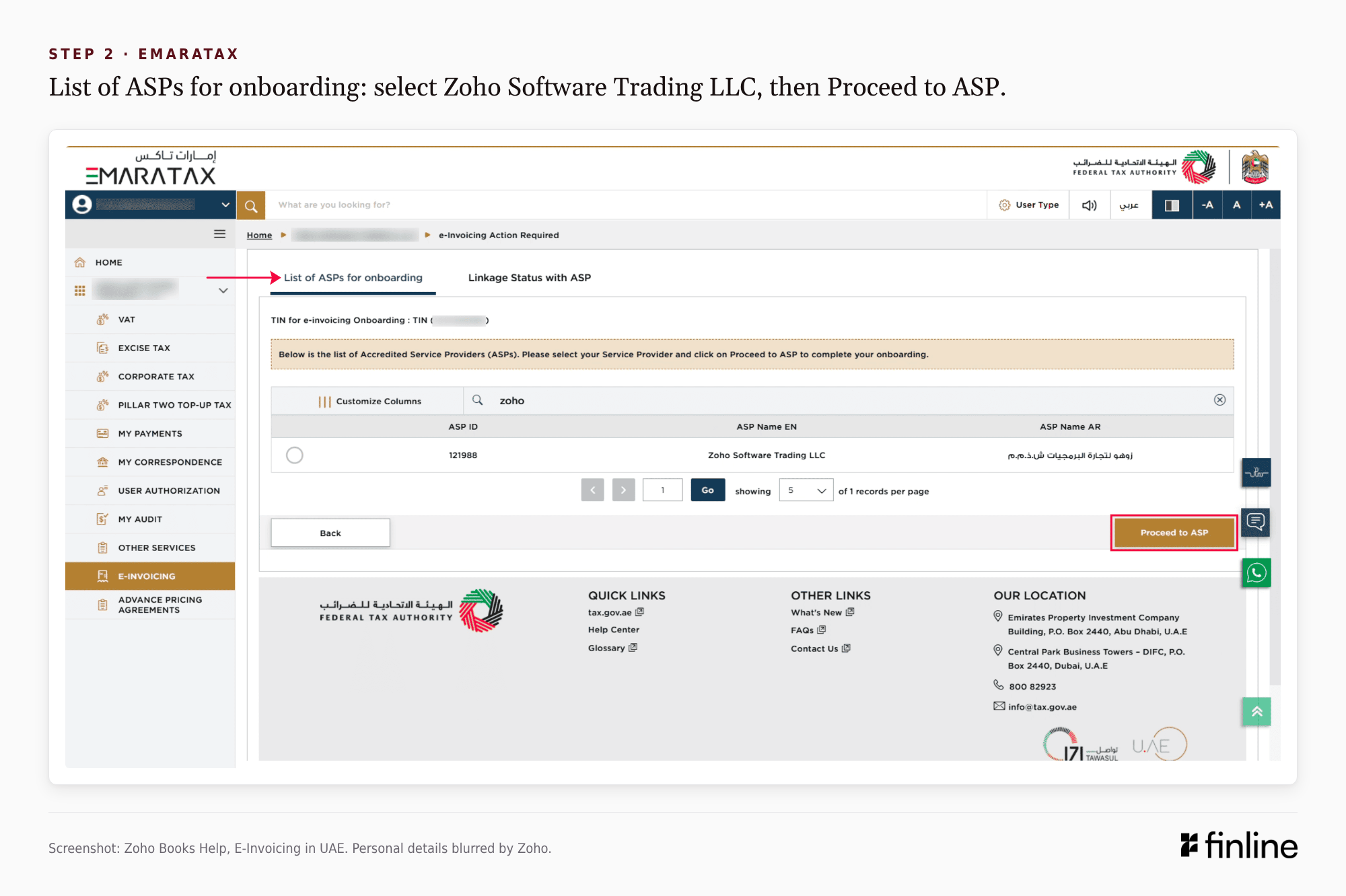
- Under List of ASPs for onboarding, select Zoho Software Trading LLC, click Proceed to ASP and confirm.
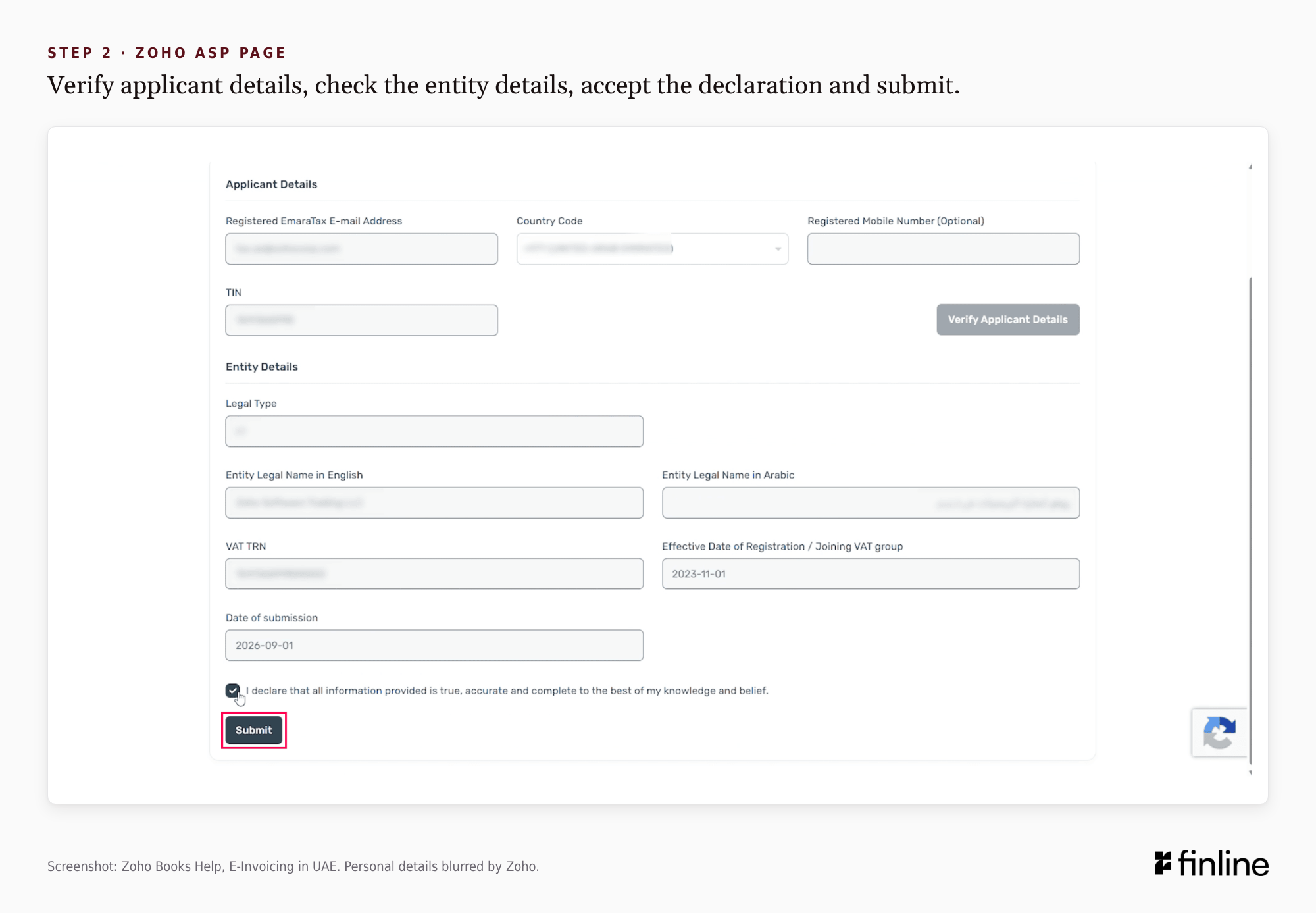
- On Zoho's ASP page, under Applicant Details, enter the EmaraTax email and TIN (mobile is optional) and click Verify Applicant Details. Check Entity Details, tick the declaration and click Submit. Close the tab with Got it, Close Tab [1].
Step 3: complete the setup in Zoho Books
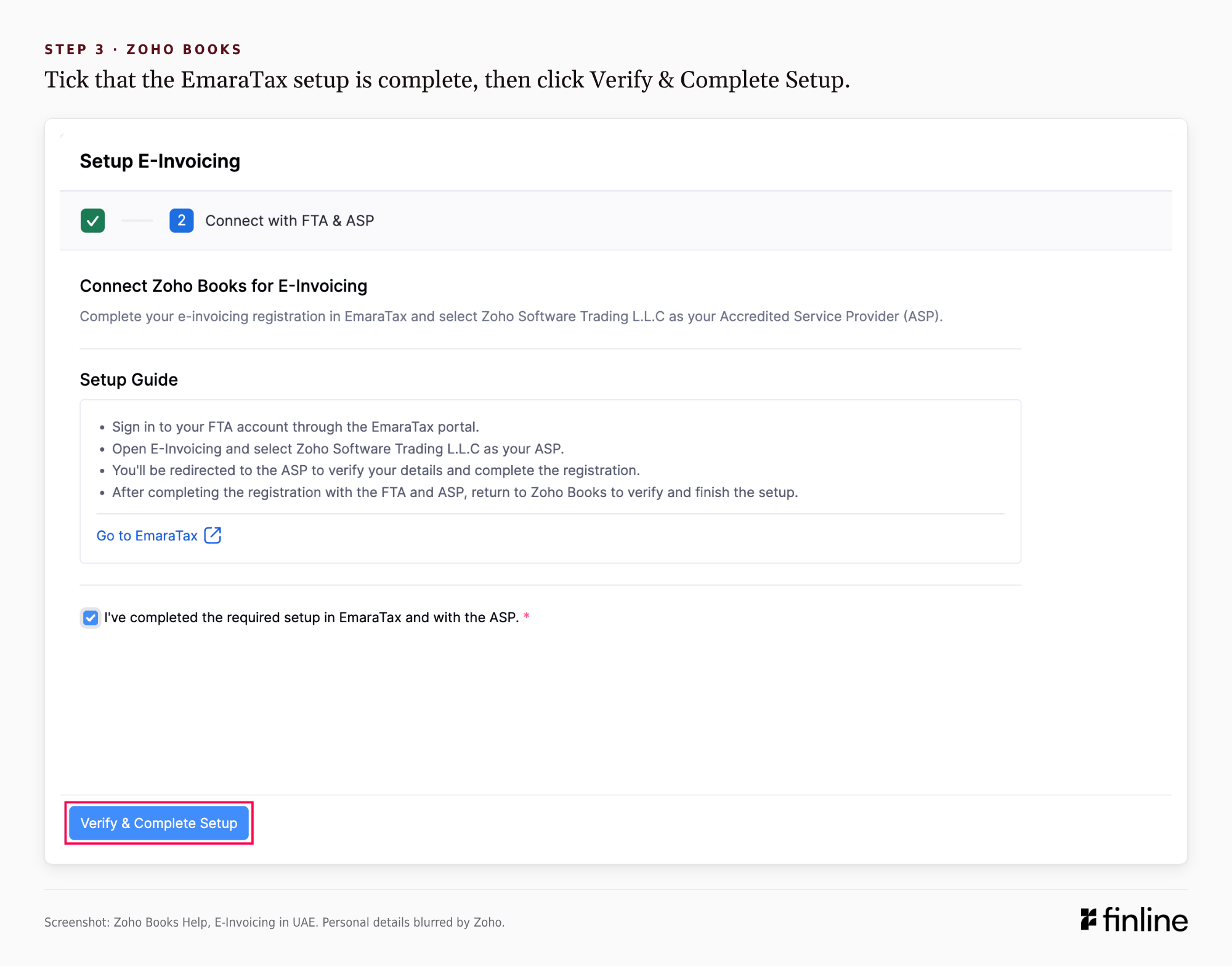
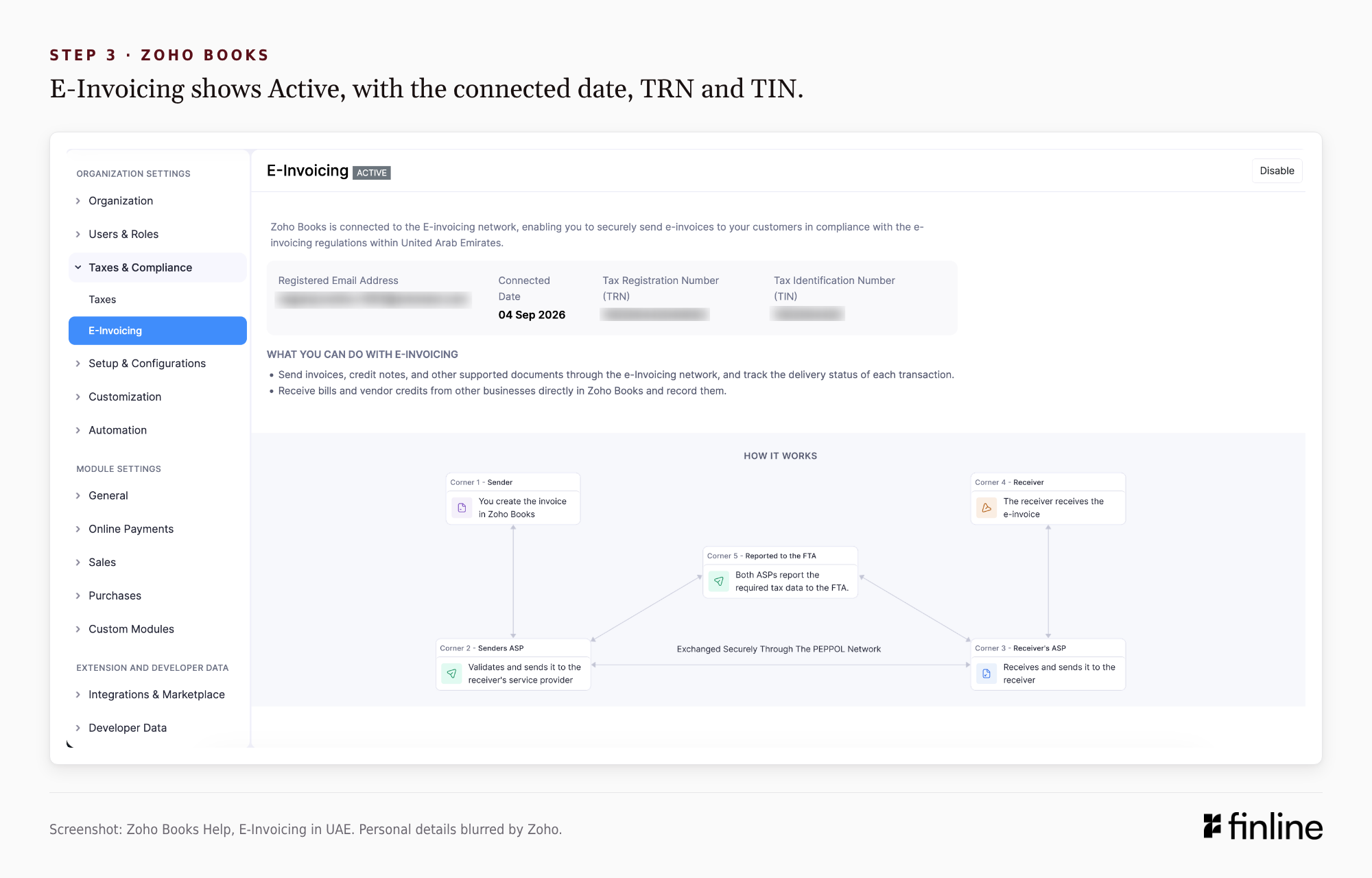
Back on the Zoho Books setup page, tick I've completed the required setup in EmaraTax and with the ASP, then click Verify & Complete Setup. The E-Invoicing page then shows the status Active, with the connected date, your TRN and your TIN [1].
Next, decide who can push. In Settings > Roles, edit a role and tick Push Transactions under E-Invoicing. A user without it can raise an invoice but can't send it to the network [1].
Sending your first e-invoice from Zoho Books
Create the invoice under Sales > Invoices and save it as a draft. Open it and click Send Invoice under What's Next. Zoho Books first checks the required fields, including your TRN and the customer's. The invoice is then validated on the Peppol network, and the ASPs report the tax data to the FTA [1][2].
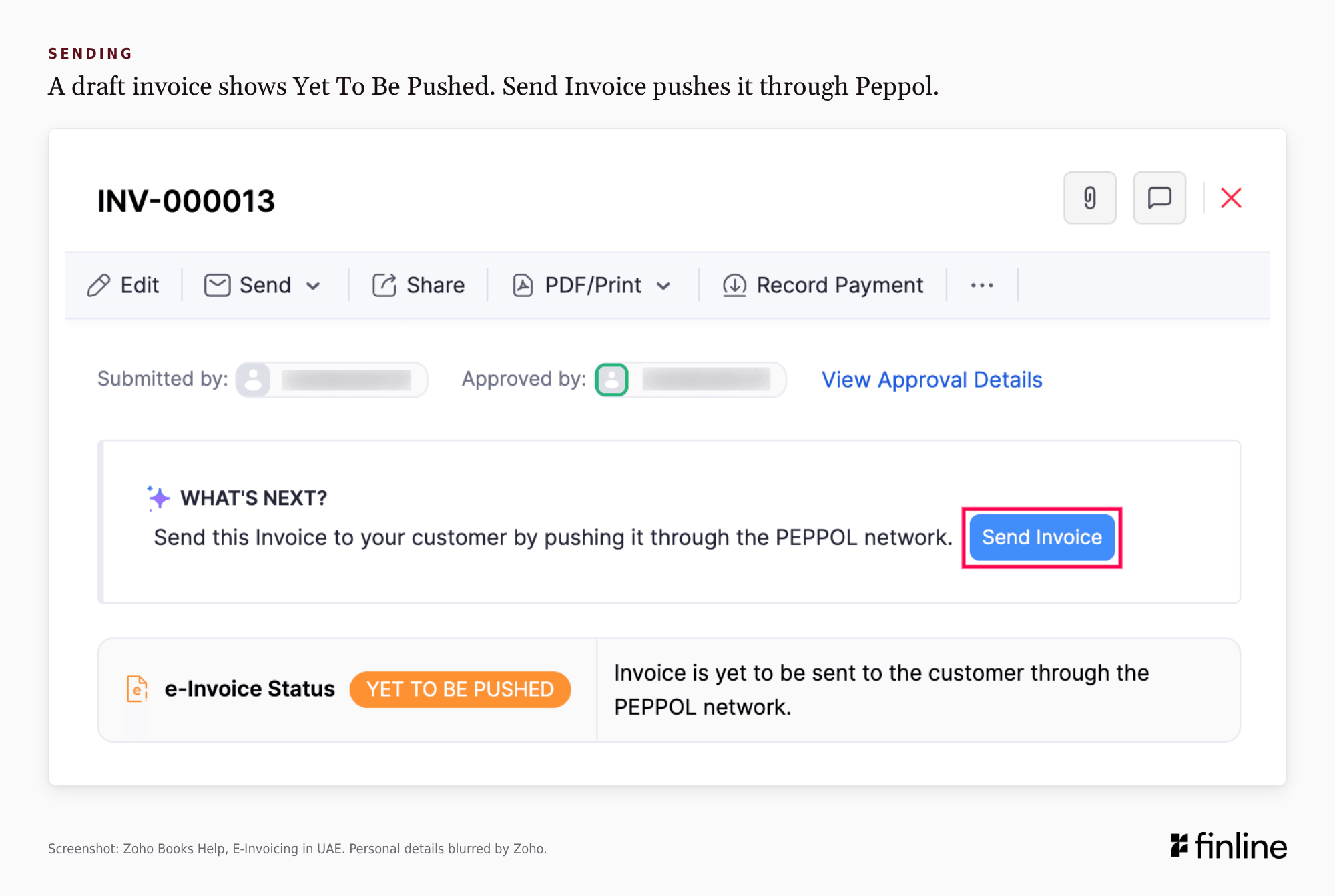
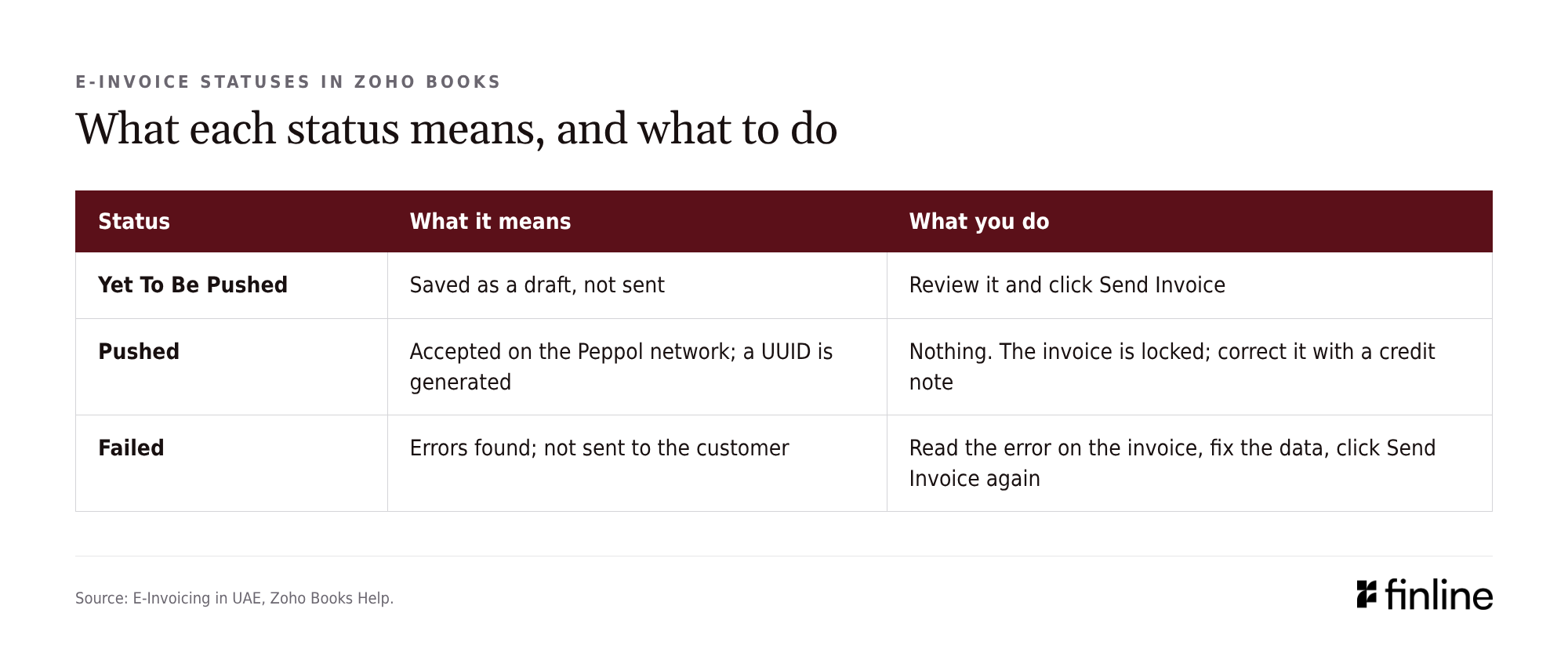
Each invoice carries one of three statuses [1]:
- Yet To Be Pushed: saved, not sent. Review it and click Send Invoice.
- Pushed: accepted on the network, with a UUID generated. The invoice is now locked.
- Failed: errors found and nothing sent. Read the error on the invoice, fix the data and send again.
The Einvoice Summary bar on the Invoices list counts pushed, waiting and failed invoices, and the All Invoices dropdown filters by status. Whoever owns billing should check it daily. Recurring invoices push automatically and report errors by in-app and email notification, so those notifications need an owner too. Invoices use the Standard E-Invoice Bilingual Template (English and Arabic) by default; to change it, click Change next to the PDF template label [1].
Why Zoho Books e-invoices fail, and how to fix them
A Failed status means the ASP found an error and returned the invoice for you to correct and resubmit. The customer has received nothing yet. The usual causes map to the mandatory fields [1][3][6]:
- The customer's TRN is missing or wrong. Correct it on the customer record as well as the invoice, or the next invoice fails the same way.
- The address is incomplete. City, emirate and country code are mandatory for both seller and buyer.
- An item has no unit of measure or tax category.
- A free zone, export or other special supply isn't flagged.
When the customer has no Peppol ID
Some buyers won't be onboarded by your go-live date. For these, the guidelines tell the supplier to use the predefined endpoint 0235:9900000098 and to issue a regular tax invoice, such as a PDF, as well. Zoho Books lets you email the PDF when the customer isn't on Peppol or isn't eligible [1][2].
Supplies to individuals who aren't acting in business are out of scope. Exports to buyers with no Peppol ID use a separate predefined endpoint, 0235:9900000099 [2].
Credit notes, vendor bills and changing ASP
A pushed invoice is locked and can't be edited or deleted. To correct one, raise a credit note against it, which follows the same send-and-validate flow. One electronic credit note can cover several past invoices, or part of one [1][2].
Supplier e-invoices arrive under Purchases > Bills, and their credit notes under Vendor Credits, both as drafts. Review each one before it reaches payables [1].
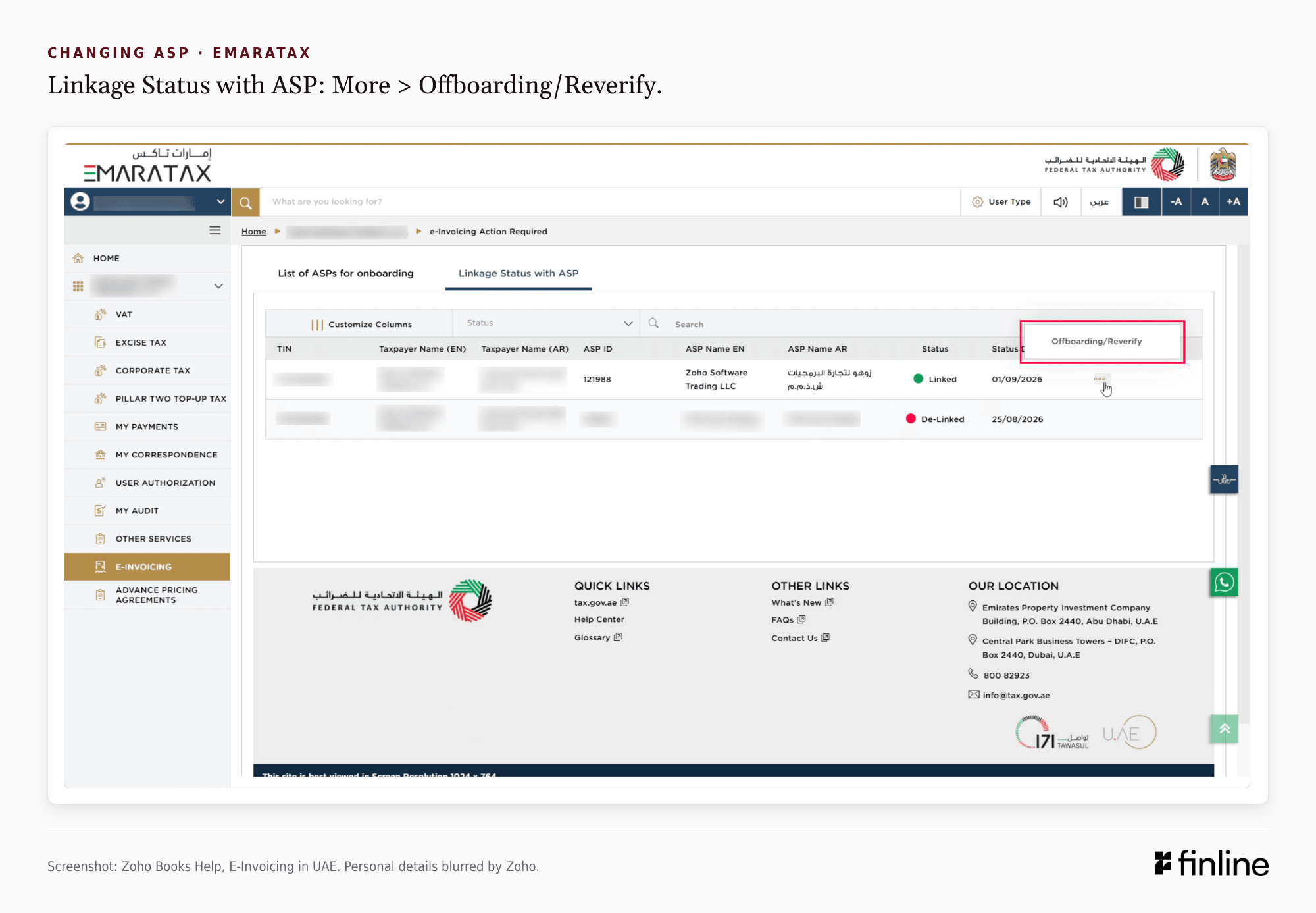
To change ASP or switch e-invoicing off, go to Settings > E-Invoicing > Disable in Zoho Books, then click Go to FTA Portal. In EmaraTax, open E-Invoicing > Linkage Status with ASP, click More beside the ASP, choose Offboarding/Reverify, select Delinking and submit. Return to Zoho Books and click Proceed. Until you link again, Zoho Books sends and receives nothing over Peppol [1].
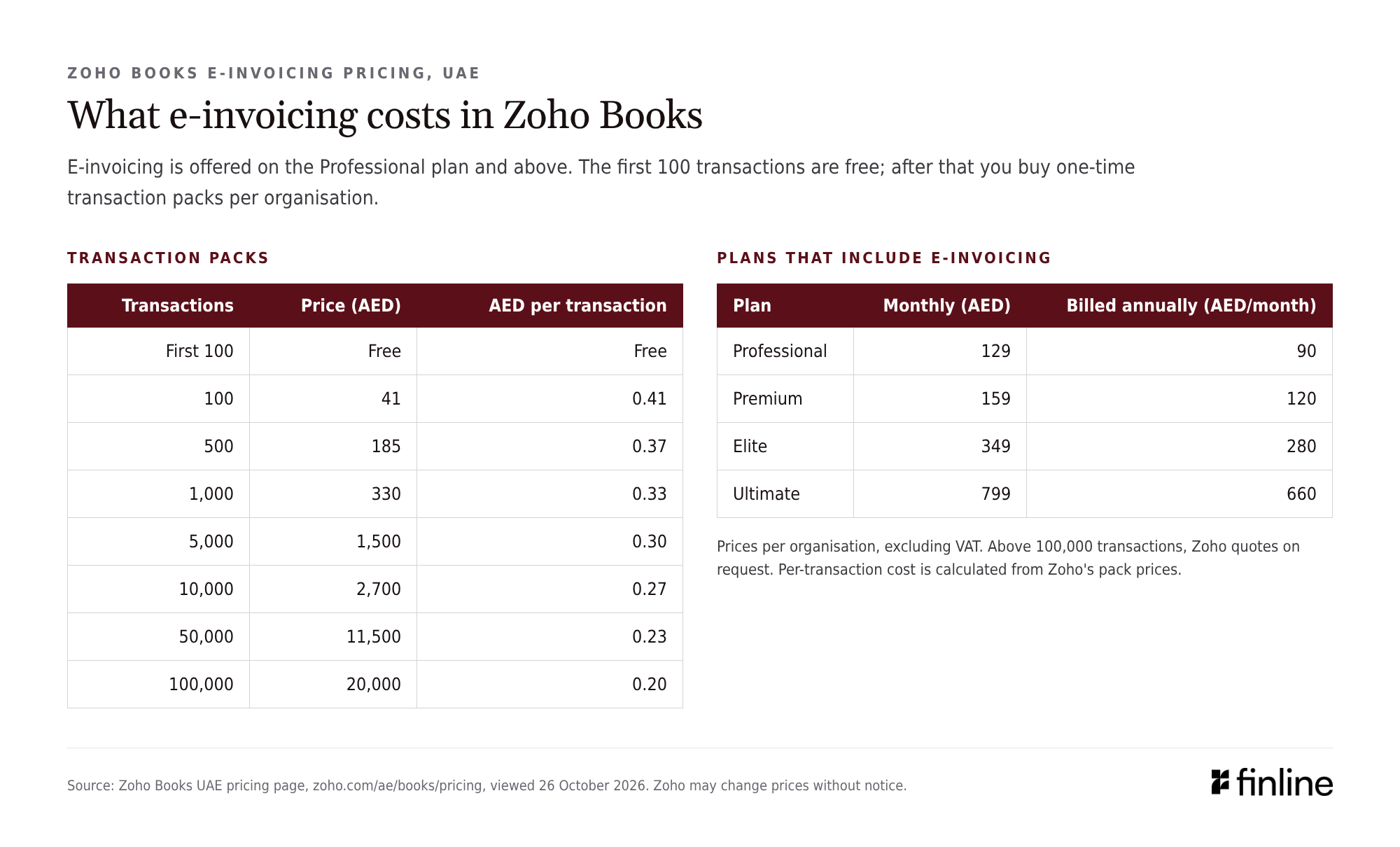
Zoho Books e-invoicing pricing in the UAE
Zoho offers e-invoicing on the Professional plan and above. The first 100 transactions are free; after that you buy one-time transaction packs per organisation. Prices below exclude VAT and are as listed on Zoho's UAE pricing page when this guide was written [5][7]:
- 100 transactions: AED 41
- 500 transactions: AED 185
- 1,000 transactions: AED 330
- 5,000 transactions: AED 1,500
- 10,000 transactions: AED 2,700
- 50,000 transactions: AED 11,500
- 100,000 transactions: AED 20,000
The unit cost falls from AED 0.41 a transaction on the smallest pack to AED 0.20 on the largest. Above 100,000 transactions, Zoho quotes on request. The Zoho Books plans that include e-invoicing are Professional (AED 129 a month, or AED 90 a month billed annually), Premium (AED 159 or 120), Elite (AED 349 or 280) and Ultimate (AED 799 or 660) [7].
The three setup screens take minutes. Whether the first invoice comes back Pushed or Failed depends on the customer master.

Sources
1. E-Invoicing in UAE: Zoho Books Help (accessed 26 October 2026). https://www.zoho.com/ae/books/help/e-invoicing/
2. UAE Electronic Invoicing Guidelines, Version 1.1: Ministry of Finance (1 June 2026). https://mof.gov.ae/wp-content/uploads/2026/06/UAE-Electronic-Invoicing-Guidelines_V-1.1-01June2026.pdf
3. UAE Electronic Invoice Mandatory Fields, Version 1.0: Ministry of Finance (23 February 2026). https://mof.gov.ae/wp-content/uploads/2026/02/UAE-Electronic-Invoice-mandatory-fields_V-1.0-23Feb2026.pdf
4. UAE eInvoicing Programme: Ministry of Finance (30 June 2026). https://mof.gov.ae/wp-content/uploads/2026/06/UAE-eInvoicing-Programme-30June2026.pdf
5. UAE eInvoicing software: Zoho Books (accessed 26 October 2026). https://www.zoho.com/ae/books/e-invoicing/
6. UAE e-invoicing FAQ: Zoho Books Academy (accessed 26 October 2026). https://www.zoho.com/books/academy/ae/taxes-and-compliance/faq-einvoicing-uae.html
7. Zoho Books pricing, UAE: Zoho (accessed 26 October 2026). https://www.zoho.com/ae/books/pricing/
Is your customer master ready for UAE E-Invoicing?
Most of the work behind a first Pushed invoice sits in customer TRNs, addresses and item setup. As a Zoho Books partner, we'll review your organisation file against the mandatory fields and complete the EmaraTax link with you.
Frequently asked questions
UAE e-invoicing requires businesses to issue and receive invoices as structured data through an Accredited Service Provider (ASP), using the Peppol network and the PINT-AE data standard. It applies to business-to-business and business-to-government transactions.
- Revenue of AED 50 million or more: appoint an ASP by 30 October 2026 and go live by 1 January 2027.
- Revenue below AED 50 million: appoint an ASP by 31 March 2027 and go live by 1 July 2027.
- Government entities: appoint an ASP by 31 March 2027 and go live by 1 October 2027.
Sales to consumers are outside the system for now, and transactions between members of the same VAT group are excluded until 31 December 2028. The rules are set by Ministerial Decisions 243 and 244 of 2025, as amended, with Guidelines published by the Ministry of Finance (version 1.1, June 2026).
See also: Does e-invoicing apply to my business?
Source: Ministry of Finance, Ministerial Decisions 243 and 244 of 2025, as amended.
Only if the software vendor is itself accredited and listed on the Ministry of Finance register. Several accounting and ERP vendors are, and for a business already using one of them it is usually the simplest route, because onboarding and invoice status sit inside the software. If your vendor is not on the register, you appoint a separate ASP that connects to your system.
No. A business must appoint one ASP for both the invoices it sends and the invoices it receives. Members of a VAT tax group are treated separately: each onboards with its own Tax Identification Number and may choose a different ASP.
Yes, for a tax invoice. Until the buyer has implemented e-invoicing, a VAT-registered supplier issues the electronic tax invoice and also a regular tax invoice, for example a PDF. The e-invoice carries the predefined endpoint 0235:9900000098 in place of the buyer's participant ID.
Yes. Zoho Software Trading LLC is an Accredited Service Provider (ASP) accredited by the Ministry of Finance, so Zoho Books can send and receive e-invoices over Peppol once you link it as your ASP through EmaraTax. Setup starts in Zoho Books under Settings > E-Invoicing.
See also: Zoho Books e-invoicing setup guide
Source: Zoho Books, E-Invoicing in UAE help and UAE eInvoicing pages.
Partly. Zoho includes the first 100 e-invoicing transactions free on the Professional plan and higher. After that you buy one-time transaction packs per organisation, from AED 41 for 100 transactions to AED 20,000 for 100,000, excluding VAT. E-invoicing is not listed on the Free or Standard plans.
Source: Zoho Books UAE pricing page.
The Tax Identification Number (TIN) is the first 10 digits of the 15-digit Tax Registration Number (TRN) the FTA issued you. Businesses registered for tax already have one. A business in scope of e-invoicing that is not registered for any tax must register with the FTA to get one.
Your Peppol participant ID for e-invoicing is 0235 followed by your TIN.
Source: Ministry of Finance, UAE Electronic Invoicing Guidelines, Version 1.1.
